How to make Realistic bubbles in Photoshop

Do you want to learn how to create realistic bubbles in Photoshop? Bubbles can add a fun and magical touch to any photo, but they can be tricky to make look natural and convincing. In this tutorial, I will show you how to use my brushes and techniques to create amazing bubble effects in Photoshop. You will also learn how to customize the colors, shapes, and sizes of the bubbles to fit your style. By the end of this tutorial, you will be able to transform any photo into a bubbly masterpiece. Let’s dive in!

Tutorial Resources
Bubbles Brushes
12 high quality Dynamic water Bubbles brushes + 6 Pattern, you can Paint with Bubbles and change your Bubbles colors to get a colorful pack right away!
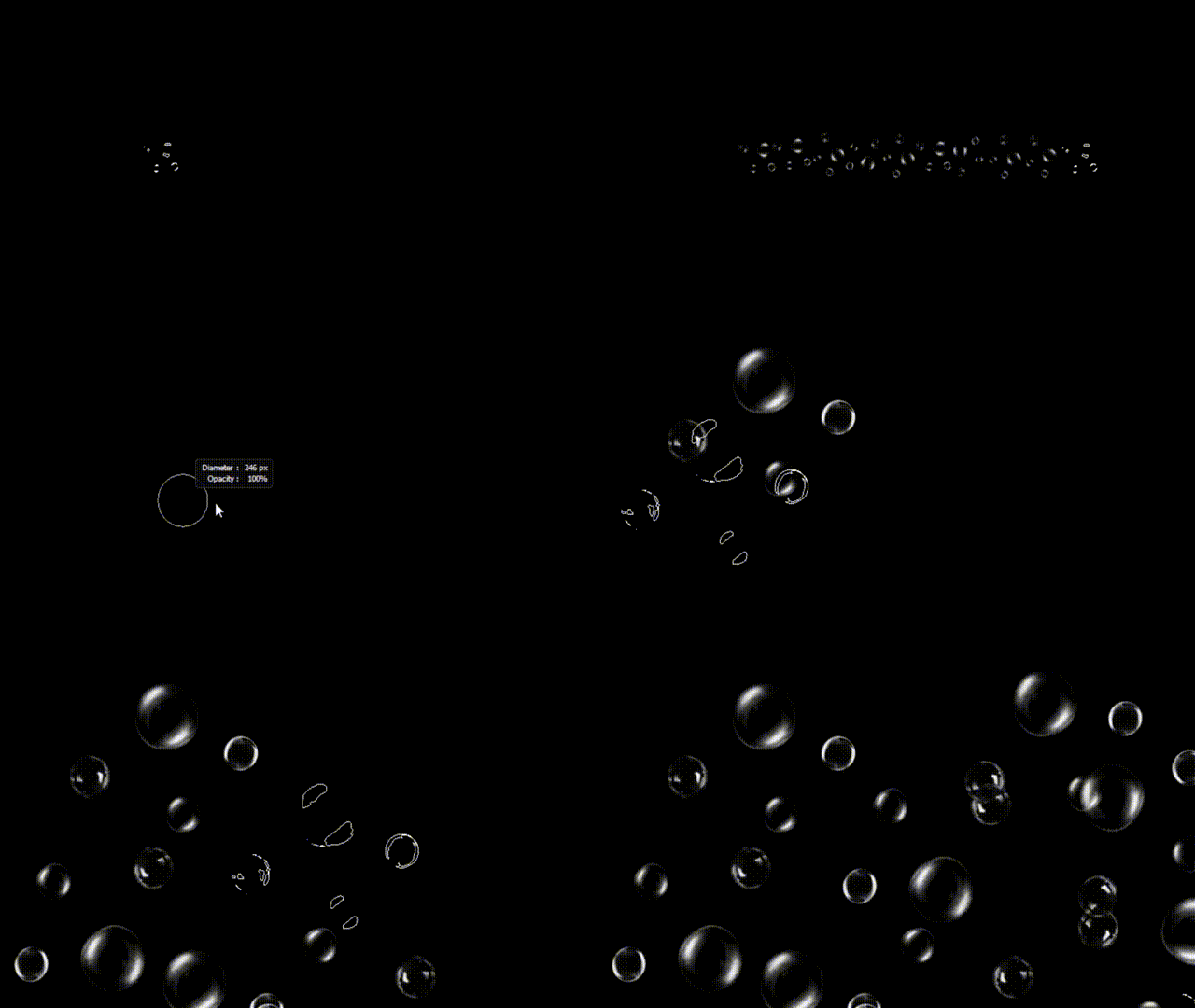

Before we start, you need to import a pattern that we will use for the bubbles.
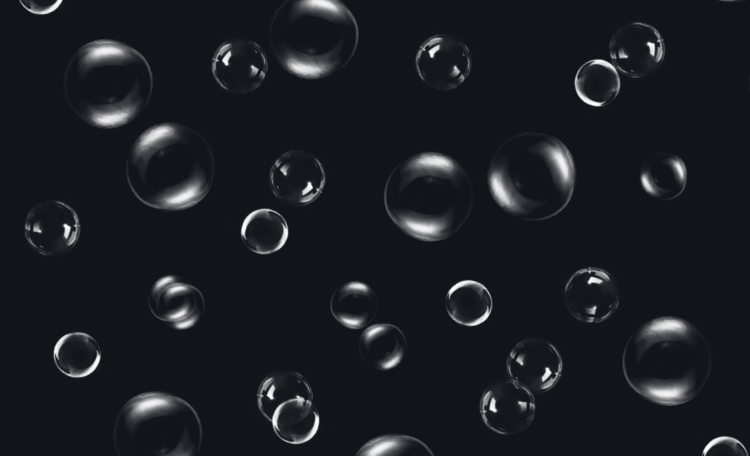
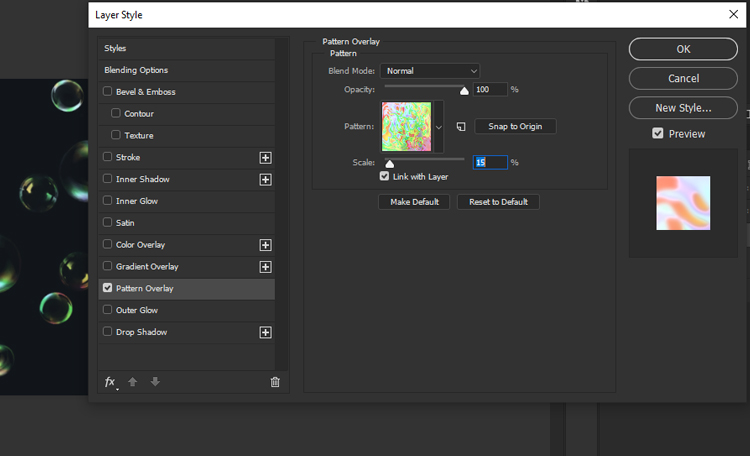
Now we will apply the pattern effect to the bubbles. To do that, you need to select the layer to right-click on the layer with the bubbles and select Blending Options. Then, choose Pattern from the list of blend modes and click OK.
 

How to install Photoshop Brushes

Installing Photoshop Brushes For (Photoshop CC 2020 and newer)

in This blog I will show you how to install Photoshop brushes.

This information applies to Adobe Photoshop CC 2019 through Photoshop 2022.
To get started, you’ll need to first download brushes for Photoshop, find your brush in our store

, and download our Photoshop brushes or brush pack you’ve chosen.
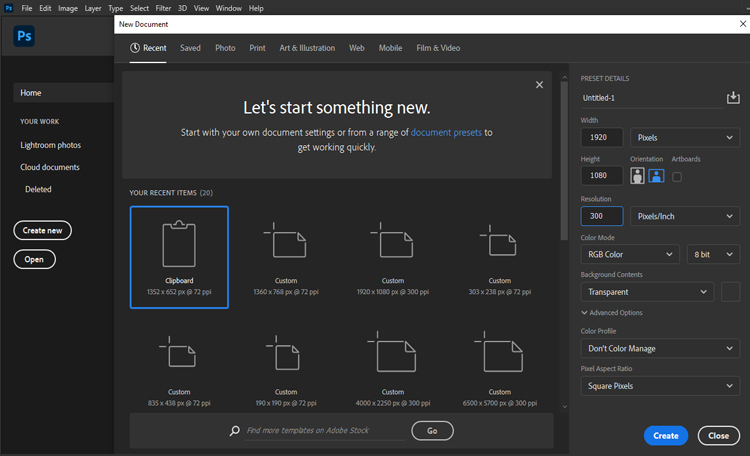
Launch Photoshop and create a new file or open an existing one!


how to install photoshop brushes


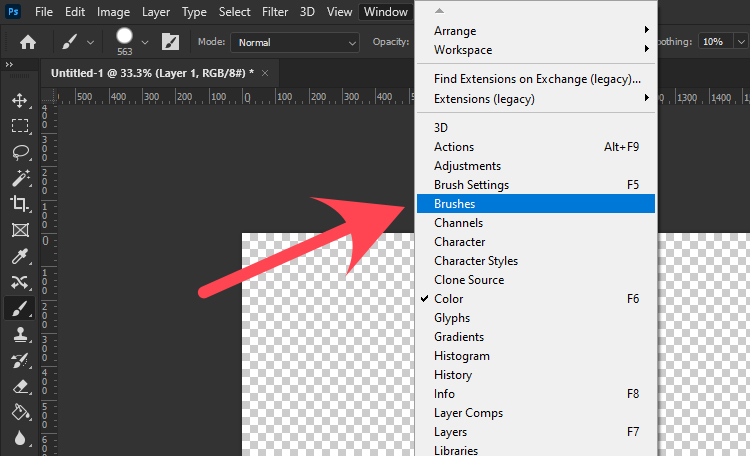
1. Open the Brushes panel, by going to Window > Brushes.


how to install photoshop brushes


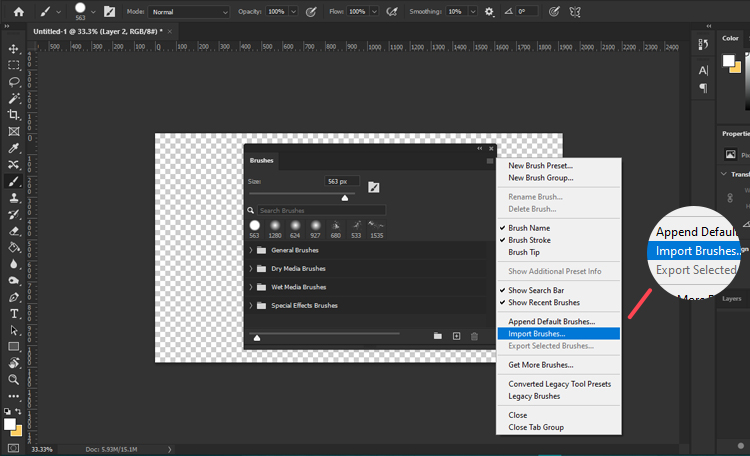
2. click the hamburger menu on the top right corner then click Import Brushes.


how to install photoshop brushes


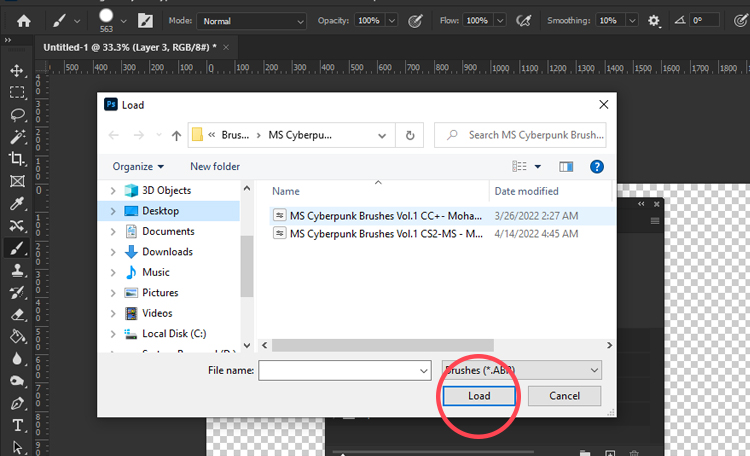
3. Locate your brush pack to select the ABR file of the brush pack.

4. then select “Load” button to insert them into Photoshop.


how to install photoshop brushes


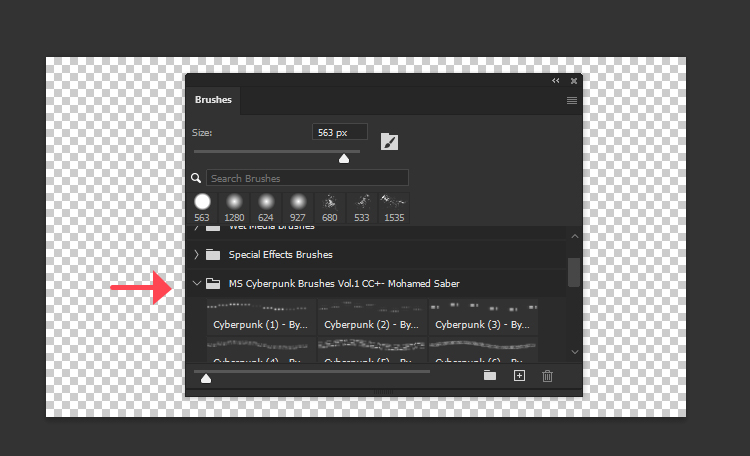
5.The new brush (or brush pack) displays in the Brushes window.

how to install photoshop brushes

How to install Photoshop Brushes in Older Photoshop Versions (CC 2019 and Older)

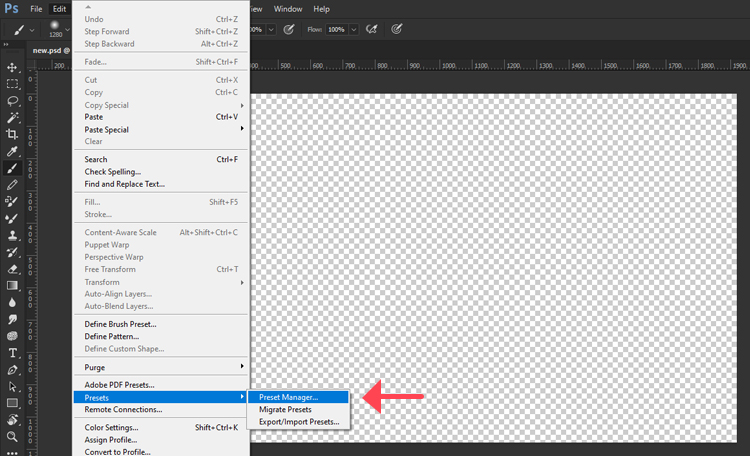
1. going to Edit > Presets > Preset Manager.

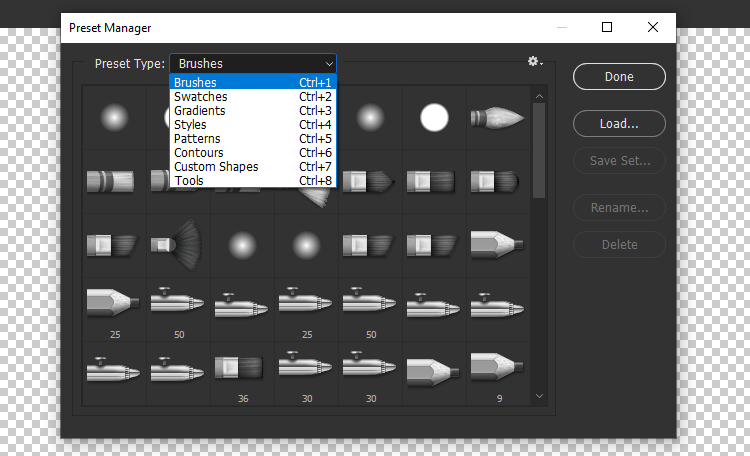
2.select from Preset Type menu “Brushes” or Ctrl+1(in keyboard).

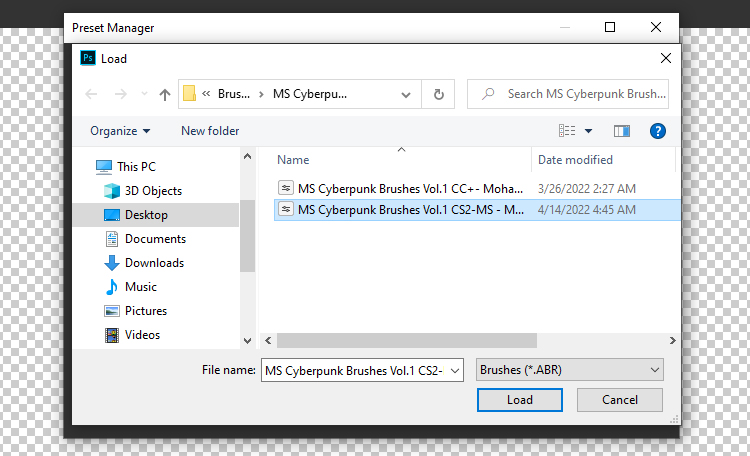
3.then select “Load” button to insert your brushes.

4.Locate your ABR file then Double Click ABR File

Enjoy!
read our blogs